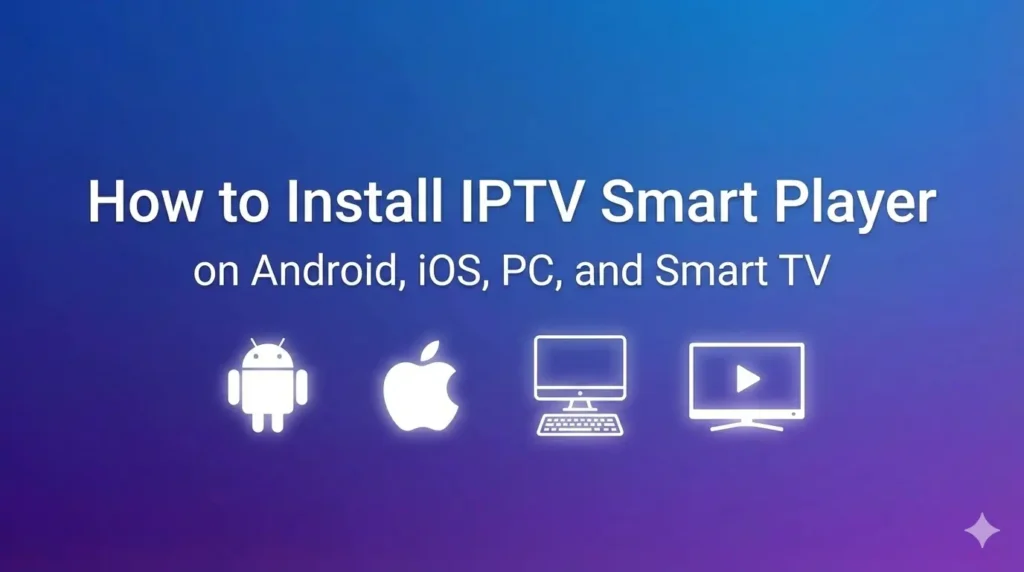
Navigating the world of IPTV applications can be overwhelming with numerous options available. Among these, IPTV Smart Player stands out as a popular choice for streaming television content over the internet. This versatile application works across multiple platforms and offers a user-friendly interface for accessing your favorite channels. In this comprehensive guide, we’ll explore how to install IPTV Smart Player on various devices and maximize your streaming experience.
Understanding IPTV Smart Player
IPTV Smart Player is a powerful application designed to stream television content via internet protocol rather than traditional satellite or cable methods. This player supports various formats including M3U, M3U8, and XMLTV, making it compatible with most IPTV services. With features like EPG (Electronic Program Guide), multi-screen support, and catch-up TV, it delivers a comprehensive viewing experience.
The application comes in different versions, including the standard IPTV Smart Player and IPTV Smart Player Pro, with the latter offering additional premium features. For those who may be confused, IPTV Smarter Player is another similar but distinct application in the market.
Installing IPTV Smart Player on Android Devices
Android users benefit from straightforward installation options for IPTV Smart Player. Here’s how to get started:
Method 1: Google Play Store Installation
- Open the Google Play Store on your Android device
- Search for “IPTV Smart Player” in the search bar
- Select the official application from the results
- Tap “Install” and wait for the download to complete
- Once installed, open the application and proceed with the setup
Method 2: APK Installation
If you prefer installing the APK file directly:
- First, enable “Unknown Sources” in your device settings (usually under Security)
- Download the IPTV Smart Player APK from a trusted source
- Locate the downloaded file in your device’s File Manager
- Tap the APK file to begin installation
- Follow the on-screen prompts to complete the setup
After installation, you’ll need to input your IPTV service credentials or playlist URL to access your channels. If you’re looking for a reliable IPTV service to use with this player, you might want to check out IPTV Gateway for quality options.
Setting Up IPTV Smart Player on iOS Devices
Installing IPTV Smart Player on iOS devices requires a slightly different approach due to Apple’s app policies:
- Open the App Store on your iPhone or iPad
- Search for “IPTV Smart Player” in the search bar
- Download and install the application
- Launch the app after installation
- Enter your IPTV service provider details or M3U playlist URL
- Configure the settings according to your preferences
iOS versions may have some limitations compared to Android counterparts due to Apple’s restrictions, but the core functionality remains the same. The interface is optimized for touch controls, making navigation intuitive on iPhones and iPads.
Installing IPTV Smart Player on Windows PC
For those who prefer watching content on larger screens, setting up IPTV Smart Player on a Windows PC is a great option:
Using an Android Emulator
- Download and install a reliable Android emulator like BlueStacks or NoxPlayer
- Launch the emulator and sign in with your Google account
- Open the Play Store within the emulator
- Search for “IPTV Smart Player” and install it
- Once installed, open the app and enter your service credentials
Alternative Windows Solutions
Some users prefer dedicated Windows applications for IPTV streaming. While the official IPTV Smart Player might not have a native Windows version, you can explore similar applications recommended by providers like BrixIPTV that offer comparable functionality.
Setting Up IPTV Smart Player on Smart TVs
Smart TV installation varies depending on the operating system your television uses:
For Android TV:
- Navigate to the Google Play Store on your Android TV
- Search for “IPTV Smart Player”
- Select and install the application
- Launch the app and enter your service provider details
For Samsung Tizen TVs:
- Press the Home button on your remote
- Navigate to the Apps section
- Search for “IPTV Smart Player” or similar applications
- Download and install the app
- Open and configure with your playlist information
For LG webOS TVs:
- Press the Home button on your remote
- Go to the LG Content Store
- Search for compatible IPTV applications
- Download and install your chosen app
- Configure with your service details
If you encounter any issues finding the app for your specific Smart TV model, you might want to explore alternative methods like using external devices such as Amazon Fire Stick or Roku, which offer more flexibility in app installation.
Configuring Your IPTV Smart Player
Once you’ve installed IPTV Smart Player on your preferred device, you’ll need to configure it properly:
Adding Playlists
- Open IPTV Smart Player
- Navigate to the settings or playlist section
- Select “Add Playlist” or similar option
- Choose your preferred method (URL, File, or QR Code)
- Enter the M3U playlist URL provided by your IPTV service
- Name your playlist for easy identification
- Save the settings
Setting Up EPG (Electronic Program Guide)
- Go to Settings within the app
- Look for EPG or Program Guide settings
- Enter the EPG URL provided by your service provider
- Configure update frequency and other preferences
- Save your settings
For those who haven’t subscribed to an IPTV service yet, providers like My Abonnement IPTV offer compatible services, or you could try a free trial from IPTV Gateway to test the functionality before committing.
Troubleshooting Common Issues
Even with the best applications, users sometimes encounter issues. Here are solutions to common problems with IPTV Smart Player:
Buffering Problems
- Check your internet connection speed (minimum 10Mbps recommended)
- Close other applications consuming bandwidth
- Try connecting via Ethernet instead of Wi-Fi if possible
- Adjust video quality settings within the app
- Clear the app cache in device settings
Playlist Loading Issues
- Verify your playlist URL is correct and up-to-date
- Check if your IPTV subscription is active
- Try reloading the playlist from settings
- Contact your service provider if issues persist
Application Crashes
- Ensure your device meets the minimum requirements
- Update to the latest version of IPTV Smart Player
- Reinstall the application if problems continue
- Check for compatibility issues with your device
Maximizing Your IPTV Smart Player Experience
To get the most out of your IPTV Smart Player installation:
Customize Your Interface
Explore the settings menu to personalize the layout, channel grouping, and visual theme according to your preferences.
Explore Advanced Features
Take advantage of features like:
- Multi-screen viewing for watching multiple channels simultaneously
- Recording functionality to save programs for later viewing
- Favorites lists to quickly access your most-watched channels
- Parental controls to restrict access to certain content
Keep Updated
Regularly check for app updates to ensure you have the latest features and security patches. Developers frequently add improvements and fix bugs in newer versions.
Conclusion
IPTV Smart Player provides a versatile solution for streaming television content across multiple platforms. Whether you’re using Android, iOS, PC, or Smart TV, the application offers a user-friendly interface and robust features to enhance your viewing experience.
Remember that a quality IPTV service is equally important as the player itself. Before committing to a long-term subscription, consider exploring options like the free trial from IPTV Gateway to ensure compatibility and satisfaction with the service.
By following the installation and configuration steps outlined in this guide, you’ll be well on your way to enjoying thousands of channels and on-demand content through IPTV Smart Player, transforming how you consume television content in the digital age.