IPTV Smarters has rapidly become one of the most popular applications for streaming television content over the internet. This powerful yet user-friendly platform allows viewers to access thousands of live channels, movies, and series through their internet connection rather than traditional cable or satellite services. But what exactly is IPTV Smarters, and how can you set it up on your preferred device? Let’s dive into everything you need to know.
What is IPTV Smarters?
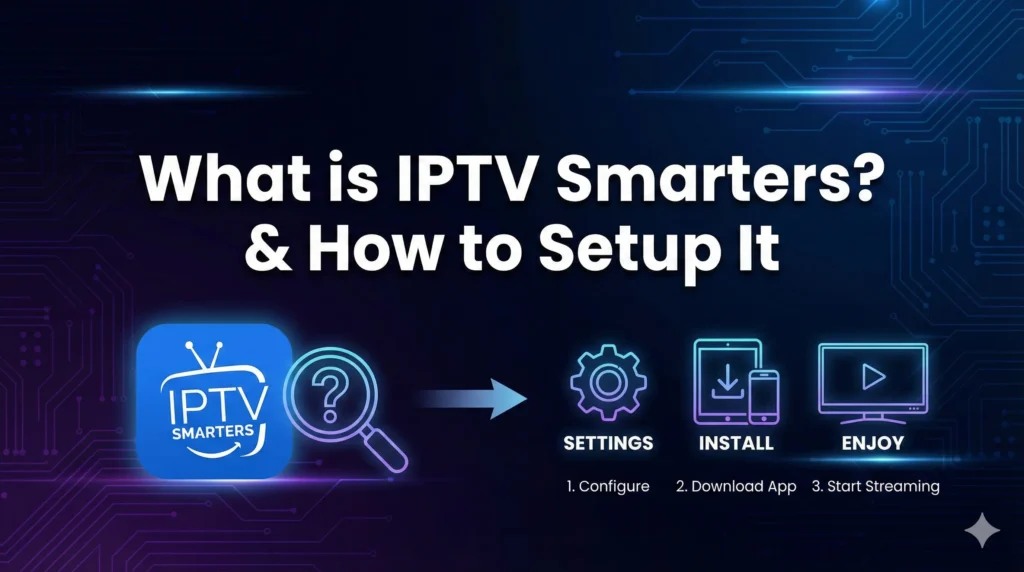
IPTV Smarters is a versatile IPTV player application designed to stream live television, video-on-demand content, and series across various devices. Unlike conventional television services, IPTV (Internet Protocol Television) delivers content through internet protocols, offering greater flexibility and often at a lower cost.
The application serves as a media player that connects to IPTV service providers, allowing users to access their subscriptions through a sleek, navigable interface. It essentially functions as the bridge between your IPTV subscription and your viewing device.
Some key features that make IPTV Smarters stand out include:
- Multi-screen support (up to 4 screens simultaneously)
- EPG (Electronic Program Guide) integration
- Catch-up TV functionality
- Favorites management
- Parental controls
- Multi-language support
- Custom playlist management
The app is available in two versions: IPTV Smarters Pro (the original version) and IPTV Smarters Player (the newer version with additional features). Both versions serve the same core purpose but may differ slightly in interface and capabilities.
Supported Devices
One of IPTV Smarters’ greatest strengths is its compatibility with various platforms:
- Android smartphones and tablets
- Android TV boxes
- Amazon Fire TV and Firestick
- Windows PCs
- Mac computers
- iOS devices (iPhone and iPad)
This cross-platform compatibility makes it a versatile choice for users with different device preferences.
How to Install IPTV Smarters Pro on Different Devices
For Android Devices
- Open the Google Play Store on your Android device
- Search for “IPTV Smarters Pro”
- Select the application and tap “Install”
- Once installed, open the app to begin setup
Alternatively, you can download the IPTV Smarters Pro APK from trusted sources if you prefer not to use the Play Store.
For Amazon Firestick
How to Install IPTV Smarters Pro on Android, iOS, Firestick, Smart TV, and PC
Installing IPTV Smarters Pro on Firestick is a straightforward process:
- From the Firestick home screen, select “Search” (magnifying glass icon)
- Type “IPTV Smarters Pro” and select it from the results
- Click “Download” or “Get” to install the application
- Once installation is complete, open the app
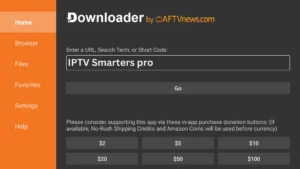
If the app isn’t available directly through the Amazon App Store, you’ll need to sideload it:
- First, enable apps from unknown sources in your Firestick settings
- Install the Downloader app from the Amazon App Store
- Open Downloader and enter the URL for the IPTV Smarters Pro APK
- Follow the on-screen prompts to install the application
For Windows PC
IPTV Smarters Pro for PC can be installed using an Android emulator:
- Download and install an Android emulator like BlueStacks or NoxPlayer
- Launch the emulator and sign in with your Google account
- Open the Google Play Store within the emulator
- Search for “IPTV Smarters Pro” and install it
- Once installed, you can launch the app through the emulator
For Mac
Similar to Windows, Mac users will need to use an Android emulator:
- Download and install BlueStacks or another Mac-compatible Android emulator
- Launch the emulator and log in with your Google account
- Access the Google Play Store
- Search for and install “IPTV Smarters Pro”
- Launch the application through the emulator
For iOS Devices
iOS users can find IPTV Smarters on the App Store:
- Open the App Store on your iPhone or iPad
- Search for “IPTV Smarters” (note that the name might vary slightly)
- Download and install the application
- Open the app to begin configuration
Setting Up IPTV Smarters with Your Subscription
Once you’ve installed IPTV Smarters Pro on your device, you’ll need to connect it to an IPTV service. The app itself doesn’t provide content—it’s simply a player that requires an IPTV subscription from providers like IPTV Gateway, BrixIPTV, or My Abonnement IPTV.
Method 1: Login with Xtream Codes API (Recommended)
Most providers now use this method because it is faster and automatically organizes your content into Live TV, Movies, and Series.
Open IPTV Smarters Pro.
Select the option “Login with Xtream Codes API”.
Enter the details sent by your IPTV provider:
Any Name: Enter a name for your list (e.g., “My TV”).
Username: Type the username provided in your email.
Password: Type the password provided in your email.
URL: Enter the portal URL (e.g.,
http://line.provider.com:80).
Tap “Add User” to connect and download your channels.
Method 2: Using M3U Playlist
- Launch IPTV Smarters Pro
- Select “Add M3U Playlist”
- Enter a name for your playlist
- Input the M3U URL provided by your IPTV service
- Optionally add EPG URL if provided
- Tap “Add” to save your playlist
Method 3: QR Code Scanning
Some IPTV providers offer QR codes for quick setup:
- Open IPTV Smarters Pro
- Select the QR code scanning option
- Scan the QR code provided by your service
- The app will automatically configure your subscription
Navigating the IPTV Smarters Interface
After successful setup, you’ll find the IPTV Smarters interface intuitive and organized into several sections:
Live TV
Browse and watch live channels, typically categorized by country or genre. The EPG (Electronic Program Guide) shows what’s currently playing and what’s coming up next.
VOD (Video on Demand)
Access movies and TV shows available on-demand. Content is usually organized into categories like action, comedy, drama, etc.
Series
Browse and watch TV series, with episodes typically organized by season.
Catch-Up
Watch previously aired content for channels that support the catch-up feature.
Favorites
Quickly access your favorite channels, movies, or shows that you’ve marked.
Settings
Customize your experience with various options like:
- Player settings
- EPG timeshift
- Parental controls
- Interface language
- Stream format preferences
Tips for Optimal Performance
To get the most out of IPTV Smarters Pro:
- Ensure a stable internet connection – A minimum speed of 10Mbps is recommended for HD content, while 4K streaming may require 25Mbps or higher.
- Regular updates – Keep the app updated to the latest version for best performance and security. The IPTV Smarters Pro update for 2025 is expected to bring significant improvements.
- Buffer settings – Adjust the buffer settings in the app based on your internet speed. Higher buffer times help with slower connections but increase the startup delay.
- Use external players – IPTV Smarters allows you to use external players like VLC or MX Player, which might provide better performance for certain types of content.
- EPG refresh – Set your EPG to refresh regularly to ensure you have the latest program information.
Troubleshooting Common Issues
Streams Not Loading
- Verify your internet connection
- Check if your subscription is active
- Try using a different stream format (HLS, MPEGTS)
- Restart the application
Buffering Problems
- Increase the buffer size in settings
- Close other applications using bandwidth
- Try connecting via Ethernet instead of Wi-Fi
- Contact your IPTV provider as the issue might be on their end
EPG Not Showing
- Make sure the correct EPG URL is entered
- Force refresh the EPG data
- Check if your provider supports EPG for your channels
Getting an IPTV Subscription
To use IPTV Smarters Pro effectively, you’ll need an IPTV subscription. If you don’t have one yet, consider these options:
- Request a free trial from IPTV Gateway to test the service before committing.
- Check out subscription options from BrixIPTV or My Abonnement IPTV, both reputable providers.
Remember that quality, reliability, and channel selection can vary significantly between providers, so taking advantage of free trials when available is recommended.
Conclusion
IPTV Smarters Pro provides a powerful yet user-friendly way to access IPTV content across multiple devices. With its robust features and simple setup process, it’s no wonder the application has become a favorite among IPTV users worldwide.
Whether you’re using it on your smartphone, Firestick, or computer, the straightforward installation process and intuitive interface make IPTV Smarters accessible even to those new to IPTV streaming. By following the setup guide above and connecting it to a reliable IPTV service, you’ll be enjoying your favorite channels and content in no time.
Remember that while the application itself is free, you’ll need an IPTV subscription from a provider to access content. Always ensure you’re using legal services that comply with copyright laws in your region.